
Installing Fritzing on Linux
Fritzing is distributed as an AppImage for Linux, which provides a single executable file that runs on most modern Linux distributions.
These instructions apply to Fritzing 1.0.8 and other AppImage releases. The AppImage works on systems with glibc >= 2.31 (released around 2020 and later).
Download: fritzing-1.0.8-l2843-5aa56a51.AppImage
General Installation Steps
- Download the AppImage file
- Make the file executable using one of these methods:
- Command line:
chmod +x fritzing-1.0.8-l2843-5aa56a51.AppImage - File manager (Ubuntu/Debian): Right-click the AppImage → Properties → Permissions → Check "Allow executing file as program"
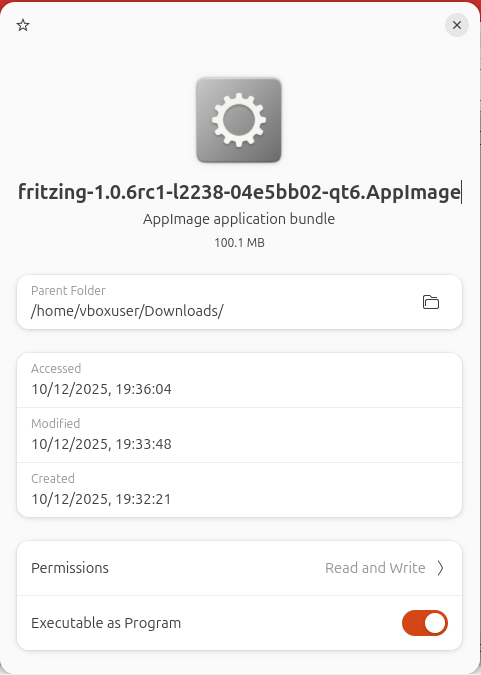
- Command line:
- Run the AppImage:
./fritzing-1.0.8-l2843-5aa56a51.AppImage
We recommend storing the AppImage in a dedicated folder like $HOME/bin or $HOME/appimages.
Distribution-Specific Instructions
Manjaro KDE 25
Tested on: Manjaro KDE 25.0.9 minimal
The AppImage runs out of the box on Manjaro. Simply make it executable and run:
chmod +x fritzing-1.0.8-l2843-5aa56a51.AppImage
./fritzing-1.0.8-l2843-5aa56a51.AppImage
Ubuntu 22.04 LTS
Ubuntu 22.04 requires the libfuse2 library to run AppImages:
sudo apt update
sudo apt install libfuse2
chmod +x fritzing-1.0.8-l2843-5aa56a51.AppImage
./fritzing-1.0.8-l2843-5aa56a51.AppImage
Ubuntu 24.04 LTS
Ubuntu 24.04 requires the libfuse2 library to run AppImages:
sudo apt update
sudo apt install libfuse2
chmod +x fritzing-1.0.8-l2843-5aa56a51.AppImage
./fritzing-1.0.8-l2843-5aa56a51.AppImage
Ubuntu 25.10
Tested on: Ubuntu 25.10
The AppImage runs out of the box on Ubuntu 25.10. Simply make it executable and run:
chmod +x fritzing-1.0.8-l2843-5aa56a51.AppImage
./fritzing-1.0.8-l2843-5aa56a51.AppImage
Debian 13.1.0
Tested on: Debian 13.1.0 (unattended installation)
The AppImage runs out of the box on Debian 13.1.0. Simply make it executable and run:
chmod +x fritzing-1.0.8-l2843-5aa56a51.AppImage
./fritzing-1.0.8-l2843-5aa56a51.AppImage
Fedora Everything 42
Fedora may require fuse library:
sudo dnf install fuse fuse-libs
chmod +x fritzing-1.0.8-l2843-5aa56a51.AppImage
./fritzing-1.0.8-l2843-5aa56a51.AppImage
CentOS
CentOS may require fuse library:
sudo yum install fuse fuse-libs
chmod +x fritzing-1.0.8-l2843-5aa56a51.AppImage
./fritzing-1.0.8-l2843-5aa56a51.AppImage
Arch Linux 2025.10.01
Arch Linux may need fuse2 package:
sudo pacman -S fuse2
chmod +x fritzing-1.0.8-l2843-5aa56a51.AppImage
./fritzing-1.0.8-l2843-5aa56a51.AppImage
Linux Mint 22.2 XFCE
Linux Mint (based on Ubuntu) requires libfuse2:
sudo apt update
sudo apt install libfuse2
chmod +x fritzing-1.0.8-l2843-5aa56a51.AppImage
./fritzing-1.0.8-l2843-5aa56a51.AppImage
Linux Mint 22.2 Cinnamon
Linux Mint (based on Ubuntu) requires libfuse2:
sudo apt update
sudo apt install libfuse2
chmod +x fritzing-1.0.8-l2843-5aa56a51.AppImage
./fritzing-1.0.8-l2843-5aa56a51.AppImage
Linux Mint 22.2 Mate
Tested on: Linux Mint 22.2 Mate
The AppImage runs out of the box on Linux Mint 22.2 Mate. Simply make it executable and run:
chmod +x fritzing-1.0.8-l2843-5aa56a51.AppImage
./fritzing-1.0.8-l2843-5aa56a51.AppImage
Troubleshooting
Permission Denied
If you get a "Permission denied" error, make sure the file is executable:
chmod +x fritzing-1.0.8-l2843-5aa56a51.AppImageFUSE Error
If you see an error about FUSE, install the appropriate FUSE library for your distribution (see instructions above).
For more detailed information about FUSE troubleshooting and installation:
Integration with Desktop Environment
For better integration with your desktop environment, you can use tools like AppImageLauncher which will help manage AppImages and create desktop shortcuts.
Still Having Issues?
If you encounter any problems with the installation, please contact us or visit our forum.